

Key Takeaways
- An operating system manages your hardware, runs your apps, and controls how you interact with your computer.
- Windows, macOS, and Linux each take a different approach to control, customization, and compatibility.
- Your choice of OS affects software availability, security behavior, and long-term support expectations.
- No single OS is universally superior - the right fit depends on your specific workflow and priorities.
Our Verdict
Windows, macOS, and Linux each serve distinct audiences well. The differences go beyond look and feel - they reflect fundamentally different philosophies about who controls the computer and how. Understanding those trade-offs helps you make a genuinely informed choice rather than defaulting to whatever came pre-installed.
| Best for | Recommended |
|---|---|
| Broad software compatibility and familiar workflow | Windows |
| Tight hardware-software integration and creative professionals | macOS |
| Maximum customization, privacy control, and technical users | Linux |
What an Operating System Actually Does
Every time you open an app, save a file, or connect to Wi-Fi, your operating system (OS) is doing the heavy lifting behind the scenes. Think of it as the software layer that sits between your physical hardware - the processor, memory, storage, and screen - and everything else you actually use.
Specifically, an OS handles four core jobs: resource management (allocating processor time and memory across running programs), file management (organizing where data lives on your drive), device communication (translating instructions between software and hardware components), and user interface (providing the visual environment - windows, icons, menus - you navigate daily).
Without an OS, application software has no foundation to run on. This is why the OS choice matters more than most casual users realize - it shapes everything from which programs you can install to how your machine handles security threats. For a related look at how this dynamic plays out on mobile devices, see Android vs. iOS: Choosing an Ecosystem.
Windows, macOS, and Linux: Core Differences
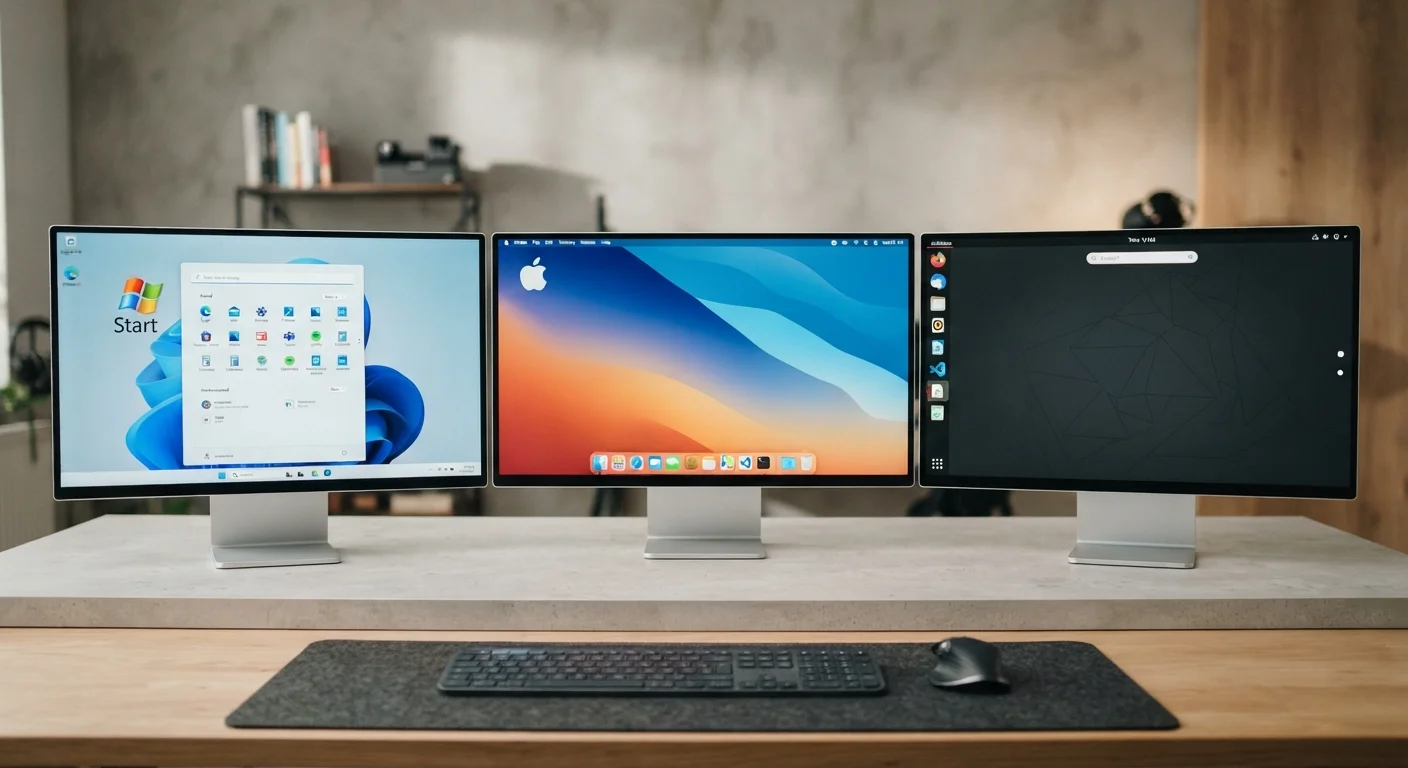
Windows, developed by Microsoft, runs on a vast range of hardware from dozens of manufacturers. This openness makes it highly compatible with third-party software and peripherals, but it also means Microsoft has less control over the full hardware-software experience. Windows dominates enterprise and consumer PC markets largely because of this compatibility breadth.
macOS, Apple's desktop OS, runs exclusively on Apple hardware. That constraint is also a deliberate design choice - Apple engineers the chip, the firmware, and the OS together, which enables tight optimization. Performance and battery efficiency on Apple Silicon machines reflect this integration directly.
Linux is an open-source OS kernel around which many different distributions ("distros") have been built - Ubuntu, Fedora, and Debian are common examples. Unlike the other two, Linux is free to use, modify, and redistribute. It powers most of the world's servers and is popular among developers and privacy-focused users, though its desktop market share remains small.
| Windows | macOS | Linux | |
|---|---|---|---|
| Hardware flexibility | Wide range of manufacturers | Apple hardware only | Runs on most PC hardware |
| Cost | Paid license (often bundled) | Included with Apple hardware | Generally free |
| Customization | Moderate | Limited | Extensive |
| Software library | Broadest commercial support | Strong creative/pro tools | Large open-source ecosystem |
| Gaming support | Strongest native support | Limited but improving | Varies; compatibility tools available |
| Typical user profile | General consumers, enterprise | Creative professionals, Apple users | Developers, privacy-focused users |
| Security patching | Automatic, vendor-managed | Automatic, vendor-managed | Community-driven, user-configured |
Security, Updates, and Long-Term Support
Each OS handles security differently, and those differences have real-world implications. Windows, as the most widely used desktop OS, is the most frequent target for malware - though Microsoft has significantly strengthened built-in defenses over the years through Windows Defender and automatic patching. Keeping Windows updated is genuinely important. What actually changes in a software update explains why those patches matter beyond new features.
macOS benefits from Apple's control over the hardware stack, which makes certain classes of attack harder to execute. However, as macOS adoption has grown, so has attacker interest - it is not immune to threats.
Linux's open-source nature means security vulnerabilities are often identified and patched quickly by a global community. Its lower desktop prevalence also reduces attacker incentive. However, the user is typically responsible for more configuration decisions, which can introduce risk if done carelessly.
Unsupported OS Versions Carry Real Risk
When an operating system version reaches its end-of-life date, the vendor stops issuing security patches. Running an unsupported OS version exposes your machine to known, unpatched vulnerabilities that attackers can exploit. Checking your OS version's support timeline - and planning upgrades before support ends - is a basic but important security practice.
Software Availability and Practical Compatibility
One of the most tangible day-to-day differences between operating systems is software availability. Windows supports the widest library of commercial applications, including virtually all professional and consumer software categories. macOS covers most major professional tools - particularly creative applications - and runs iOS apps on Apple Silicon. Linux's app ecosystem has grown considerably, with many open-source alternatives to mainstream software, though some specialized commercial applications remain unavailable natively.
Gaming is another clear differentiator: Windows has the most robust native game support by a significant margin. macOS gaming support has improved but remains limited compared to Windows. Linux gaming has made notable progress through compatibility layers like Proton, though results vary by title.
Understanding how apps, programs, and the OS interact is also useful context - see the difference between an app, a program, and a browser extension for a clear breakdown.
Try Before You Commit
Linux distributions can typically be run as a "live" session directly from a USB drive without installing anything on your computer. This lets you explore the desktop environment and test hardware compatibility before making any changes to your system. It's a low-risk way to evaluate whether Linux suits your workflow.
Choosing Based on Your Actual Needs
The OS that fits you best depends on what you actually do with a computer. If you need broad hardware choice and the widest software compatibility - especially for work environments that rely on specific Windows-only tools - Windows is the most friction-free path. If you're embedded in Apple's ecosystem or work in creative fields where macOS tools are standard, Apple's integrated approach tends to deliver a cohesive experience. If you value control, privacy, and customization - and you're comfortable with some technical self-sufficiency - Linux rewards the investment.
It's also worth noting that the OS shapes the update experience significantly. Understanding OS updates - what changes and what doesn't covers how update cadences and policies affect security and performance over time, a principle that applies to desktop operating systems as well.