

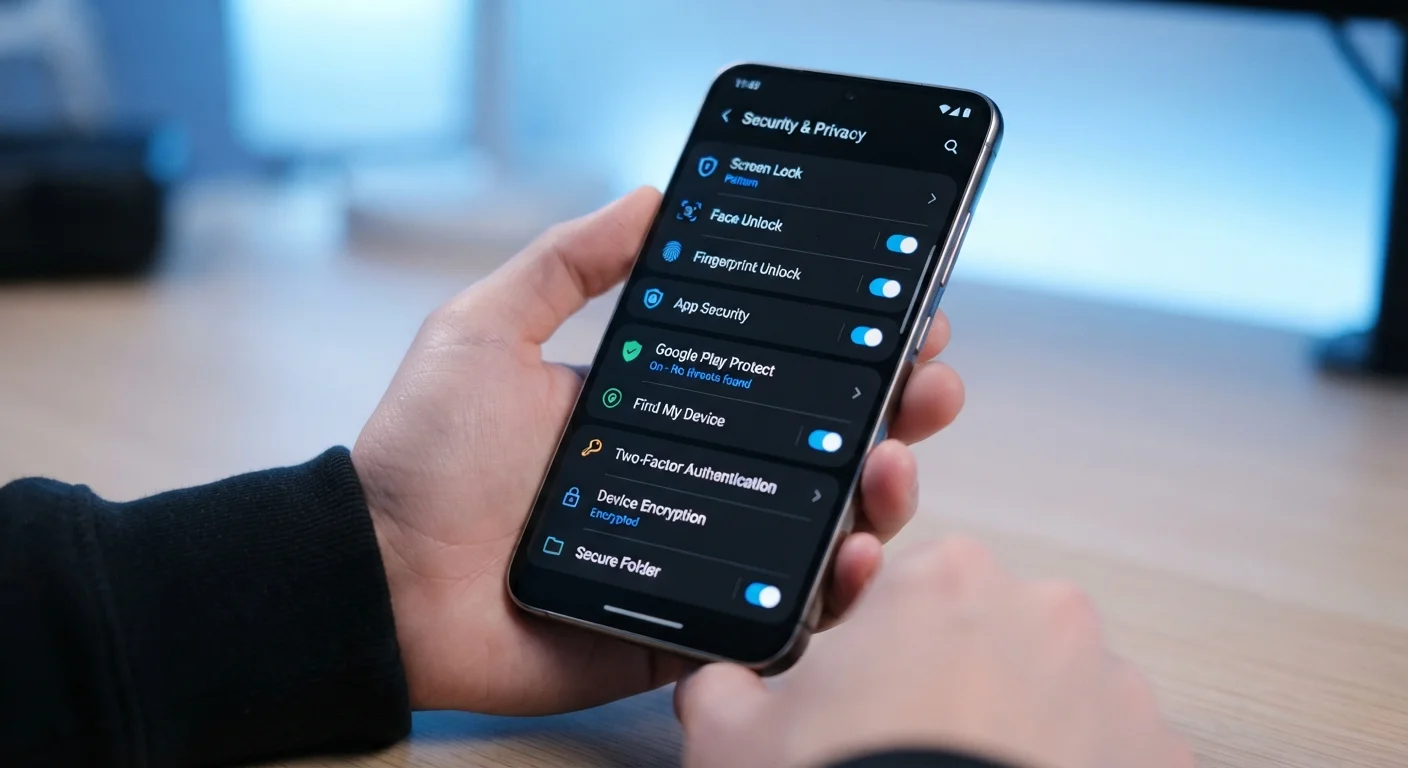
Key Takeaways
- Most smartphones include built-in security features that remain disabled by default and require manual activation.
- App permissions, encrypted backups, and biometric locks are among the most impactful and most overlooked settings.
- Enabling two-factor authentication and reviewing connected accounts takes under five minutes and significantly reduces exposure.
- Regular review of location and microphone permissions limits how much data apps can quietly collect in the background.
Why Your Phone's Security Settings Are Probably Incomplete
Smartphones today come loaded with security features that rival tools once reserved for corporate IT departments. The catch: most of them ship turned off, hidden in settings menus that most people never open. That gap between what your phone can do and what it's actually doing is where most personal data exposure happens.
This isn't about paranoia - it's about using tools that are already on your device. If you're not sure what some of the terms below mean, our smartphone glossary is a helpful reference. And for a broader look at keeping all your devices safer, see our guide on keeping personal devices reasonably secure.
Audit app permissions quarterly - revoke access that isn't clearly necessary.
Apps frequently request access to your microphone, camera, contacts, and location even when those permissions have no obvious connection to the app's function. Leaving these open creates ongoing data exposure with no benefit to you.
Enable encrypted cloud backups and verify they are actually running.
Backups protect you from data loss, but unencrypted backups leave your personal files, messages, and photos readable if the backup storage is ever accessed by someone else. Encryption ensures only you can restore from them.
Turn on automatic screen lock with a timer of 30 seconds or less.
A phone left unlocked for even a few minutes in the wrong setting can expose messages, banking apps, and personal photos. A short auto-lock timeout is one of the simplest friction points against unauthorized access.
Enable a strong biometric lock combined with a complex PIN as a fallback.
Fingerprint and face recognition are convenient, but they can be bypassed in certain legal or physical scenarios. A complex PIN or passphrase as the backup ensures a second meaningful barrier remains in place.
Review and restrict which apps can access your location - and when.
Location access 'always on' allows apps to track your movements continuously in the background, building detailed records of your daily routine. Most apps only need location access while you are actively using them.
Enable the device's built-in 'Find My' or remote wipe feature before you need it.
If your phone is lost or stolen, a remote wipe can prevent access to every account, photo, and message on the device. The feature must be activated in advance - you cannot enable it after the fact.
The Settings Worth Turning On Right Now
Each of the practices above addresses a different layer of phone security - from how apps access your data to what happens if your device is lost. None require technical knowledge to enable, and most take under two minutes to configure.
Check Permissions After Every Major App Update
App updates occasionally reset or request new permissions without prominently flagging the change. Making a habit of reviewing permissions after significant updates - not just at install - keeps your settings from drifting back open over time. A monthly five-minute check is enough for most users.
How Security Features Work Together
Individual security settings are useful, but they're most effective when layered. A strong screen lock keeps casual intruders out; app permission controls limit what software can do once your phone is unlocked; encrypted backups ensure your data stays protected even if a cloud account is compromised.
52%
Adults who use weak or reused passwords
According to a Pew Research Center survey on Americans and cybersecurity, roughly half of adults use the same password across multiple accounts, compounding risks when any single service is breached.
1 in 10
Smartphones reported lost or stolen annually
Industry estimates suggest a meaningful share of devices are lost or stolen each year, underscoring why remote wipe and device tracking features matter even for careful users.
Two-factor authentication (2FA) is a critical complement to all of the above. If an app or account you've linked to your phone is breached, 2FA can block unauthorized access even when a password is known. Our article on passwords and two-factor authentication explains how both layers work in practice.
Software updates also play a direct role: many security patches close vulnerabilities that these settings are designed to protect against. Understanding what changes in a phone OS update can help you decide when to install updates promptly.
Security Settings Vary by Platform and Version
The exact menu names and options described here may differ slightly depending on whether you use Android or iOS, and which version your device runs. If you cannot find a specific setting, searching your device's built-in help or settings search bar using the feature name (e.g. 'app permissions' or 'encrypted backup') will typically surface the right option. Keeping your OS current also ensures you have access to the latest security features - see our overview of what software updates actually change for more context.