

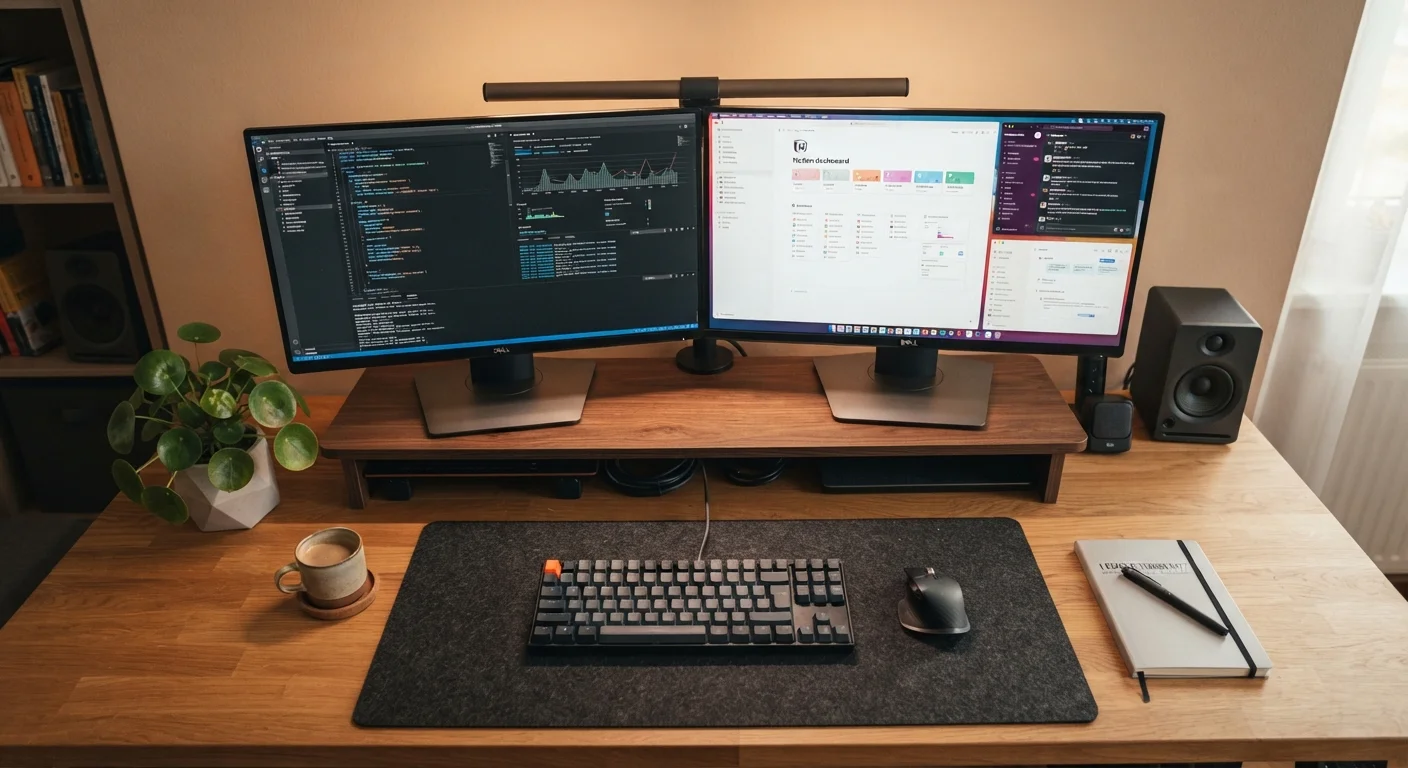
Key Takeaways
- Confirm your computer has a compatible, available video output port before purchasing any monitor.
- Mismatched resolutions between displays can create a disjointed, uncomfortable experience.
- Desk depth, monitor arm compatibility, and cable management should be planned before the monitor arrives.
- Refresh rate and panel type matter depending on whether your primary use is work, creative tasks, or gaming.
- Your GPU must support multi-monitor output - integrated graphics have real limitations worth checking.
Summary
18 items · 20-40 minutes
Why This Checklist Exists
Adding a second monitor sounds straightforward - plug it in and get more screen space. In practice, buyers regularly run into problems that a little advance planning would have prevented: the wrong port, a desk that can't fit a second display comfortably, or a resolution mismatch that makes text look blurry on one screen and sharp on the other.
This checklist walks through every meaningful variable before you spend money, so the monitor you bring home actually works the way you expect. If you've recently run a similar pre-purchase audit on another device, you'll recognize the logic - see how the same approach applies in our consumer checklist for refurbished phones.
Work through these items in order. Some take seconds; others require you to check your computer's specs or measure your desk. All of them are worth doing.
Ports & Connectivity
GPU & System Capability
Resolution & Display Matching
Refresh Rate & Use Case
Physical Space & Ergonomics
Final Verification
What to Have Ready Before You Start
You don't need specialized equipment, but a few reference points will make the checklist faster to complete.
Your computer's system specifications
Used to confirm GPU model, available ports, and maximum supported display outputs.
Measuring tape
Required to measure desk width, depth, and cable run distances accurately.
GPU manufacturer's product page or manual
Provides confirmed specs on maximum simultaneous monitor outputs and supported resolutions.
Display adapter (HDMI-to-DisplayPort, USB-C-to-HDMI, etc.)
May be needed to bridge a port mismatch between your computer and the second monitor.
Monitor arm or VESA mount
Frees up desk space and allows precise ergonomic positioning if included stands aren't sufficient.
Once you have the above ready, move through the checklist systematically. Pay particular attention to the ports and GPU sections - these are where most incompatibility problems originate. If your setup lives in a shared room where space and aesthetics matter, it's also worth thinking through the physical footprint with the same care you'd give to how each room's layout should function.
Adapters Don't Always Pass Full Signal
Not all video adapters are created equal. A passive HDMI-to-DisplayPort adapter, for example, may not support high refresh rates or 4K resolution. Before purchasing an adapter, verify it supports the resolution and refresh rate you need. Active adapters are generally more reliable for demanding display combinations but cost more.
Laptop Users: Check Port Sharing
On many laptops, the HDMI port and USB-C port share bandwidth from a single output on the GPU - meaning you cannot always use both simultaneously at full specification. Check your laptop's documentation carefully, since manufacturers don't always advertise this limitation prominently.
After You've Worked Through the Checklist
If every item in the checklist is resolved, you're in a strong position to choose and install a second display with confidence. If you hit a snag - an unsupported port, a GPU that maxes out at one external display, or a desk that simply won't accommodate two monitors without crowding - address those constraints first. A monitor stand, a DisplayPort adapter, or a dedicated GPU may solve the issue, but factor those into your total cost before committing.
It's also worth revisiting your broader spending plan if adding a full display setup is a meaningful purchase. A structured budget review, like the kind outlined in spotting gaps in your current budget, can help you assess whether now is the right time or whether a phased approach makes more sense.
Integrated Graphics Has Real Limits
If your computer relies on integrated graphics rather than a discrete GPU, dual-monitor support may be limited or unavailable depending on your machine. Some integrated GPUs cap out at a single external display, and performance can degrade noticeably when driving two screens. Check your processor and motherboard specifications directly rather than assuming multi-monitor support.