

Key Takeaways
- Internal storage holds your apps, photos, and files even when the phone is off.
- RAM determines how many apps can run at once without slowing down.
- Cloud backup stores copies of your data on remote servers accessible from any device.
- All three are measured in gigabytes but do entirely different jobs.
- Running out of storage is not the same as running out of RAM.
- Cloud backup protects your data if your phone is lost, broken, or replaced.
Phone Storage, RAM & Cloud Backup
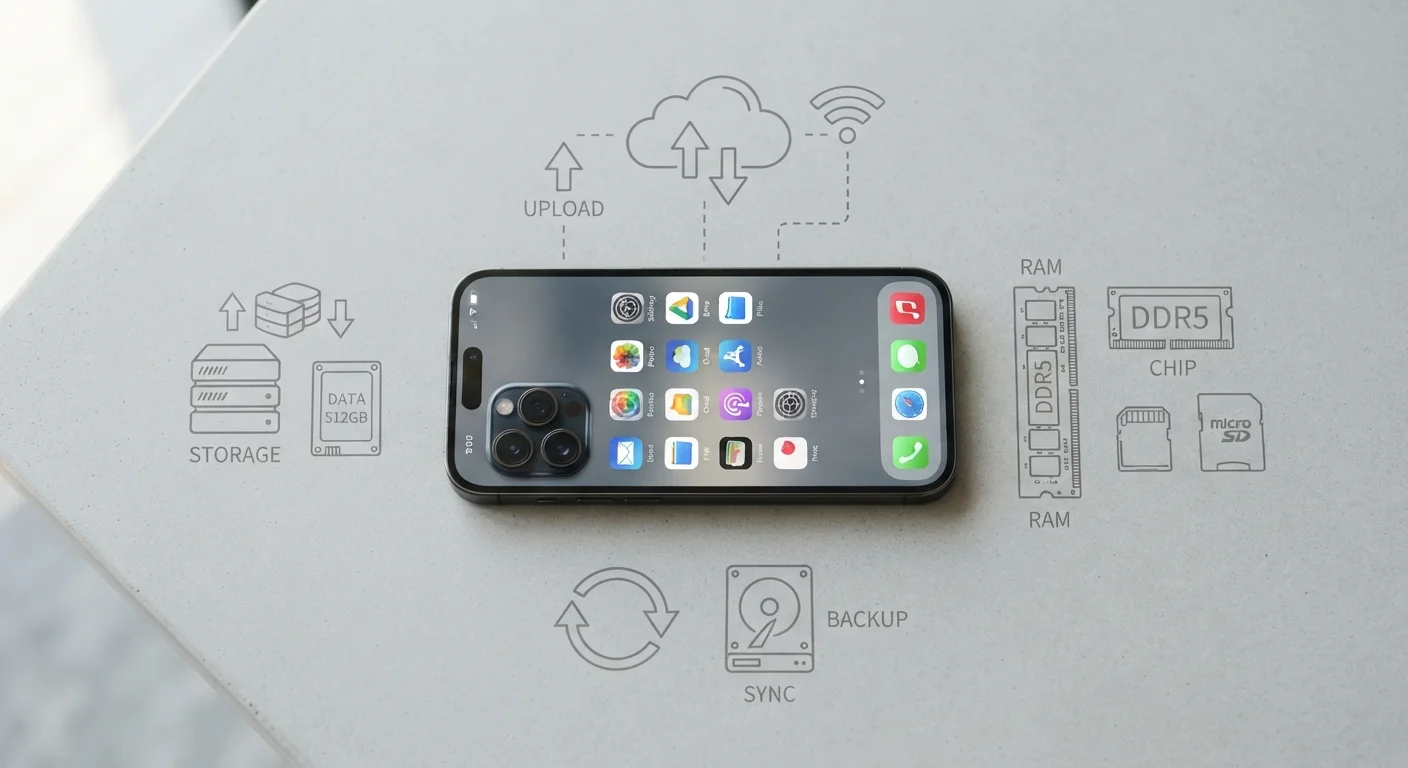
Your phone has three distinct places it handles data: internal storage holds your files and apps permanently, RAM keeps active apps running smoothly in the moment, and cloud backup stores copies of your data on remote servers over the internet. Each one serves a different purpose, and all three can affect how your phone feels to use.
RAM (Random Access Memory) is volatile - it clears when the phone restarts. Internal storage uses flash memory (typically UFS or eMMC) and retains data without power. Cloud storage lives on external servers operated by third-party providers.
Internal Storage: Your Phone's Filing Cabinet
Internal storage is the permanent space on your phone where everything lives when it's not actively in use - your apps, downloaded music, photos, videos, and the operating system itself. Think of it like a filing cabinet: things go in, stay there, and remain intact even when the phone is powered off.
When you download an app or snap a photo, it writes to internal storage. When you delete a file, that space is freed up for something else. Most phones today offer between 64 GB and 512 GB of internal storage, though actual usable space is always slightly less because the operating system and pre-installed apps take their share.
A phone with full storage can't install new apps or take more photos until something is removed - regardless of how much RAM it has or how much cloud space is available. These are separate systems that don't compensate for each other.
Check Your Storage Before Upgrading
If your phone frequently shows "storage full" warnings, check what's taking up space before buying a new device. Photos and videos are usually the biggest culprits and can often be moved to cloud storage or a computer. Clearing cached app data can also recover meaningful space without deleting anything important.
RAM: Your Phone's Short-Term Workspace
RAM - short for Random Access Memory - is where your phone keeps things it's actively working on. When you open an app, it loads from storage into RAM so the processor can interact with it quickly. The more RAM available, the more apps can stay open and ready without needing to reload from scratch.
Unlike storage, RAM is temporary. Everything in it clears when you restart the phone. It's less like a filing cabinet and more like a desk: a bigger desk lets you spread out more work at once, but when you go home at night, the desk is cleared.
A phone with more RAM generally handles multitasking better - switching between a map app, a messaging thread, and a browser tab feels seamless. A phone with limited RAM may force apps to reload every time you switch back to them. For a deeper look at how the chip driving all of this works, see what a smartphone processor actually does.
64 GB
Minimum internal storage on many mid-range phones
Many current mid-range smartphones ship with 64-128 GB of internal storage as a baseline configuration.
15 GB
Free cloud storage offered by Google One
Google provides 15 GB of free cloud storage shared across Gmail, Drive, and Google Photos, as of the current plan structure.
8 GB
RAM common in modern mid-range smartphones
Many mid-range Android devices ship with 6-8 GB of RAM, while flagship models often offer 12 GB or more.
Cloud Backup: Your Data's Safety Net
Cloud backup is a copy of your data stored on servers run by a third-party provider - companies like Google, Apple, or Microsoft. Unlike storage and RAM, the cloud is not a physical component inside your phone. Your data travels over the internet and sits on remote hardware, accessible from any device as long as you're signed in.
The main value of cloud backup is protection and continuity. If your phone is lost, stolen, or damaged, your photos, contacts, and app data can be restored to a new device. It also makes switching phones far less stressful. For a walkthrough on moving your data to a new device, see switching phones without losing everything.
Cloud services typically offer a free tier with a limited amount of space - often 5 GB to 15 GB - with paid plans available if you need more. It's worth knowing that cloud storage and your phone's internal storage are entirely separate pools. Understanding what the cloud actually is can help clarify exactly where your files go when you upload them.
“Most people don't think about their phone's memory until something breaks - they run out of space, things slow down, or they lose data after switching devices. Understanding the difference between these systems in advance makes all of those moments far less stressful.”
— Technology & Devices Editorial Team, Consumer technology writers covering smartphones and digital literacy
How All Three Work Together
Storage, RAM, and cloud backup each handle a distinct job, but they interact constantly. When you take a photo, it saves to internal storage. Your phone's RAM keeps the camera app responsive while you're using it. Later, cloud backup copies that photo to a remote server so it's protected.
Confusion often arises because all three are measured in gigabytes. Seeing "6 GB RAM" and "128 GB storage" on a spec sheet can make them seem like the same kind of thing - they aren't. For a focused breakdown of exactly how these two are different, RAM vs. storage explained plainly goes into detail.
Understanding these three systems independently helps you diagnose real-world problems. A phone that lags when switching apps needs more RAM - more storage won't fix it. A phone that can't take new photos needs storage cleared - more RAM is irrelevant. And a phone with no cloud backup is one cracked screen away from losing years of memories.
Cloud Backup Requires an Internet Connection
Automatic cloud backup typically only runs when your phone is connected to Wi-Fi, to avoid using up your mobile data allowance. If you haven't connected to Wi-Fi in a while, your most recent files may not yet be backed up. Check your backup settings periodically to confirm everything is current.