

Key Takeaways
- Choosing a film everyone can access on the same platform is the single most important setup decision.
- Browser extensions like Teleparty sync playback automatically so no manual countdown is needed.
- A shared group chat or voice call running alongside the film keeps the communal energy alive.
- Agreeing on pause rules upfront prevents frustration mid-screening.
- Virtual watch parties work best when the guest list stays small enough for real conversation.
What you will need
Why Virtual Watch Parties Actually Work
Watching a film in silence, alone, is a perfectly valid experience - but there's a particular energy that only exists when other people are reacting alongside you. The gasp at a plot twist, the shared groan at a predictable line, the post-credits conversation that runs longer than the film itself - these are the textures that make cinema social. Virtual watch parties recreate those textures across any distance.
The technology has quietly matured. Sync tools now handle the fiddly business of keeping everyone's playback aligned, so the host doesn't need to shout a countdown over a group call. What's left is the fun part: choosing the film, bringing the people, and letting the shared experience do its work. If you've been hitting a wall with solo browsing, this kind of structured communal viewing can also be a remedy for the decision paralysis described in our piece on streaming fatigue.
Pick a Film With Broad Appeal
Watch parties thrive on shared enthusiasm. A crowd-pleaser - a beloved classic, a recent crowd favourite, or a film with a strong visual identity - tends to generate more live reaction than a slow-burn arthouse piece. Save the challenging watch for a smaller, more dedicated group. If you need fresh ideas, our guide to getting into international cinema is a great starting point for adventurous groups.
What You'll Need Before You Start
A successful watch party has three pillars: a film everyone can access, a tool to keep playback in sync, and a channel for live conversation. Get those three things right and the rest takes care of itself.
What you will need
Teleparty (formerly Netflix Party)
A free browser extension that syncs playback and adds a shared chat sidebar across several major streaming services.
Discord
Provides a persistent voice or video channel so guests can react in real time without muting the film.
Scener
A browser extension that overlays a video call window directly onto the streaming screen for a more immersive co-watching experience.
Group chat app (iMessage, WhatsApp, Signal)
Allows text-based reactions and commentary for guests who prefer not to be on a live call.
Picture quality matters more than many people assume once you're watching on a large screen. If your group wants to squeeze the best visuals out of the stream, our guide to picture-quality terms like HDR and Dolby Vision explains what the settings actually do.
Agree on Pause Rules Before You Press Play
Nothing derails a watch party faster than one person pausing for a snack break while everyone else keeps watching. Decide upfront whether pausing is open or restricted to scheduled breaks. Most groups find that limiting pauses to two pre-agreed intervals - one at the midpoint, one for emergencies - keeps the shared experience intact and minimises spoiler risk.
Step-by-Step: Running Your Watch Party
Follow these steps in order and you'll have everyone watching in sync within about fifteen minutes of setup time.
Choose a film and confirm everyone has access
Poll your group a day or two in advance - a simple vote via group chat works fine. Once a film is chosen, confirm that every guest has access to it on the same streaming platform. If the title lives behind a transactional paywall, share the rental link so everyone can purchase it simultaneously. Our explainer on subscription vs. transactional streaming can help guests understand the difference if they're unfamiliar.
Install a playback-sync tool
Head to your browser's extension store and install a sync tool such as Teleparty or Scener. These extensions inject a sync layer into the streaming player so that play, pause, and seek actions propagate to every connected viewer simultaneously. Once installed, you'll see a new icon in your browser toolbar.
Create a session and share the link
Navigate to the film on the streaming platform, then click the sync extension icon and select Create Party (wording varies by tool). The extension will generate a unique session URL. Copy that link and paste it into your group chat. Guests simply click the link, and - provided they're already logged into the same streaming service - their player will lock into your session automatically.
Set up your side communication channel
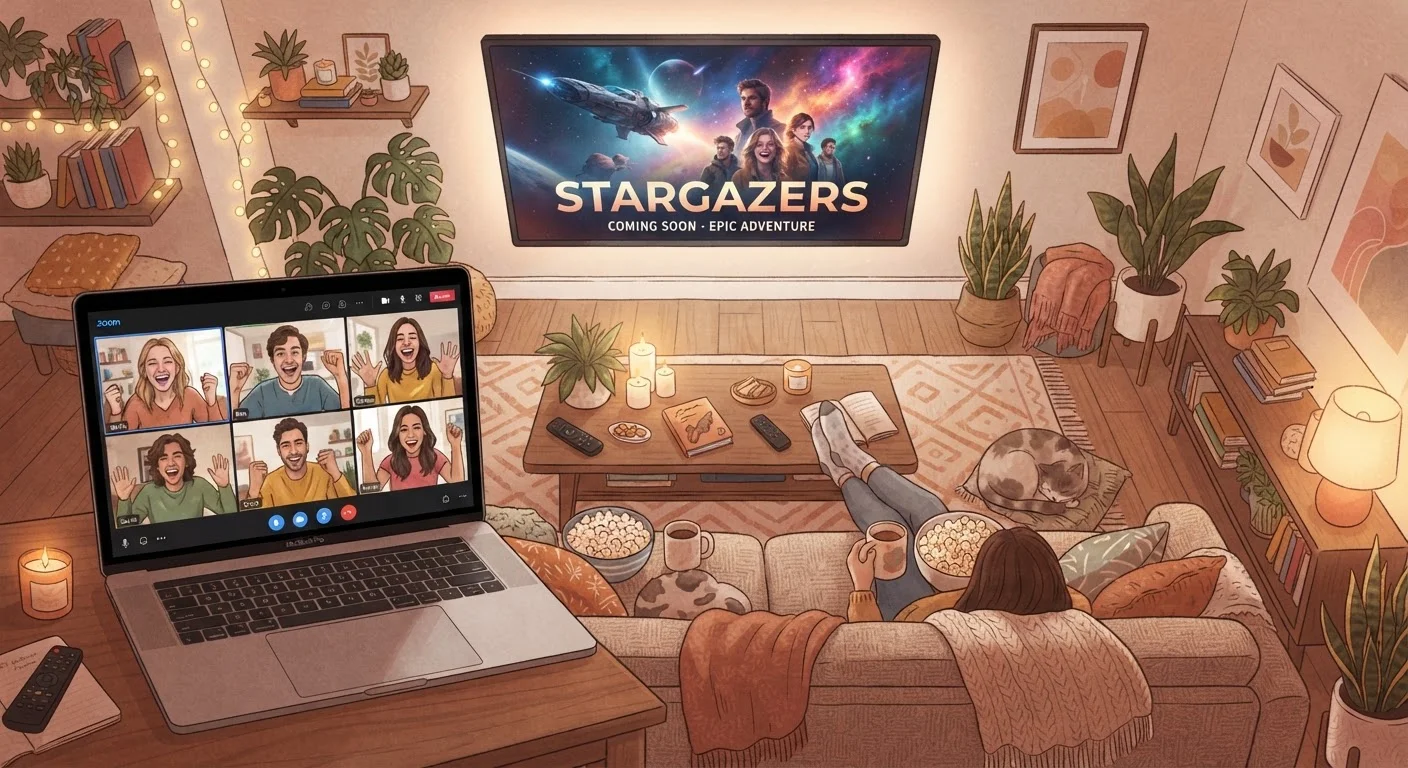
Decide how the group will react in real time. Options include the built-in chat sidebar inside Teleparty, a Discord voice channel running quietly in the background, or a live video call via Zoom or FaceTime. Text-only chat keeps things low-distraction; voice or video raises the energy closer to an actual cinema outing. There's no wrong answer - match the format to your group's personality.
Agree on house rules, then press play together
Before the host hits play, run through the ground rules: pause policy, scheduled break times, and whether spoiler commentary is allowed in the chat. Once everyone signals they're ready - a simple thumbs-up emoji in the chat works - the host starts playback. The sync tool handles the rest, keeping all streams locked together.
Host a post-film discussion
The credits rolling is when a watch party really earns its name. Move the conversation to a voice or video call and open the floor - reactions, favourite scenes, and disagreements are all fair game. If your group wants to deepen their engagement with the film, exploring how professional critics approach a screening can give everyone a richer framework for discussion.
Platform Access Must Match Exactly
Every guest needs active access to the same streaming service - and, if the title is a rental, the same rented title. Sync tools cannot bridge different platforms, and free-trial accounts may have playback restrictions that break synchronisation. Confirm everyone's access before the party night to avoid last-minute scrambles.